
Dialpad live translation with Connect
Configure Dialpad Hardware Settings for reliable Connect microphone and speaker routing.
Prepare Dialpad
Open Connect and verify the physical headset before changing Dialpad. Keep the current microphone and Speaker / Headset selections available so the route can be restored after testing.
- Connect: select the physical headset and the languages required for the test.
- Operating system: confirm that Connect Mic and Connect Speaker are present.
- Dialpad: sign in with an account allowed to change Hardware Settings.
- Baseline: use a private test call and verify both directions independently.
Choose the device pair
The correct device pair depends on which side of the conversation must pass through Connect. Use Connect Mic for translated outgoing speech and Connect Speaker when incoming speech must also be translated. Keep ringtones and notifications on the physical headset when the application exposes a separate selector.
| Translation direction | Dialpad microphone | Dialpad speaker |
|---|---|---|
| Bidirectional | Connect Mic | Connect Speaker |
| Outgoing only | Connect Mic | Physical headset |
| Incoming only | Physical headset | Connect Speaker |
Configure Dialpad Hardware Settings
Dialpad exposes the active call devices from Hardware Settings. Apply the Connect route there, test the selections, and confirm the same devices remain active when a call starts.
- Open Dialpad and select the gear icon to show the settings panel.
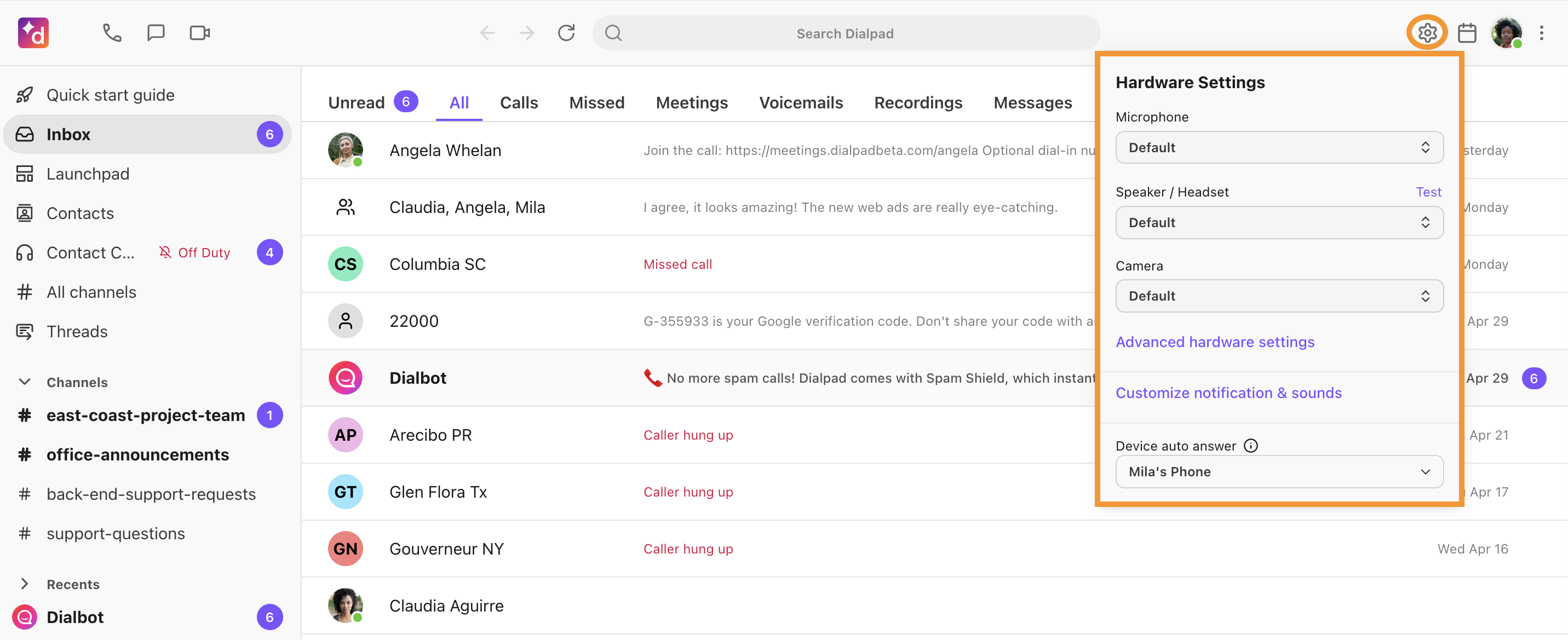
Open Hardware Settings from the Dialpad settings panel. - Open Hardware Settings under Notifications & Sounds.
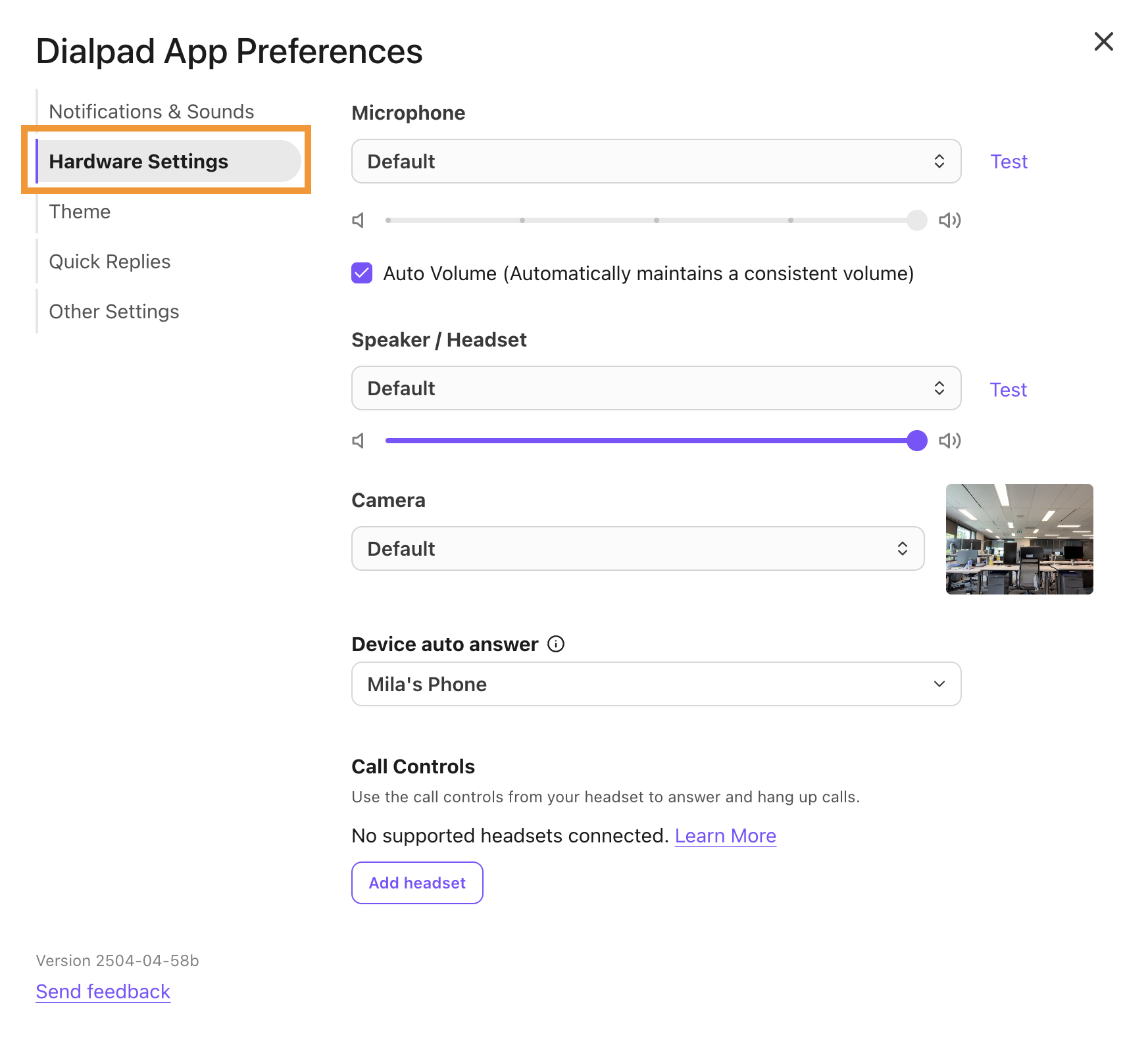
Open the microphone and Speaker / Headset controls. - Set Microphone to Connect Mic for translated outgoing speech.
- Set Speaker / Headset to Connect Speaker for incoming translation, or the physical headset for outgoing-only translation.
- Use Dialpad’s Test controls, save the selection, and verify the active devices in a private call.
Review Dialpad audio controls
Dialpad can maintain automatic volume and device preferences across calls. Begin with one stable baseline and change only the control that matches the symptom you can reproduce.
- Compare automatic volume on and off when the microphone level changes unexpectedly.
- Keep camera, notification, and ringtone devices outside the Connect route unless the workflow requires them.
- Use Advanced hardware settings only when a specific device or headset behavior requires an additional adjustment.
Validate the complete call
A saved device name does not prove that the live route works. Test the physical headset, Connect processing, the Dialpad audio path, and remote playback as one complete chain.
- Run How I Sound? and confirm that the physical microphone reaches Connect clearly.
- Start a private test call and verify the active microphone and speaker inside Dialpad.
- Press CONNECT-ON and confirm that the timer starts and live transcription responds.
- Speak a complete sentence and ask the remote participant whether they hear the expected translated or natural signal.
- Test the reverse direction when using bidirectional or incoming-only translation.
Resolve common issues
Use the symptom to identify the layer that needs attention instead of changing every setting at once. Confirm the current device names, make one correction, and repeat the same short test.
| Symptom | Likely cause | Next check |
|---|---|---|
| Connect devices are missing | Dialpad cached its device list | Open Connect first, then restart or reload Dialpad. |
| The recipient hears natural speech | The physical microphone is active | Select Connect Mic in the active call. |
| Incoming translation is silent | The speaker bypasses Connect | Select Connect Speaker when incoming audio must be translated. |
| Speech is clipped or metallic | Two applications are processing the same signal | Disable one gain, suppression, or enhancement control and retest. |
Frequently asked questions
These answers cover the decisions most likely to change the Dialpad result. Confirm the translation direction before applying a recommendation, then keep the last working configuration available so a failed adjustment can be reversed.
Which Dialpad devices should I select?
Select Connect Mic for outgoing translation and Connect Speaker for incoming translation. Use both for bidirectional calls.
Why are the Connect devices not listed?
Open Connect first, confirm the virtual devices in the operating system, then close and relaunch Dialpad so Hardware Settings refreshes.
Should I change auto volume?
Start with the current setting and compare one controlled test with it changed only if the microphone level is unstable.
How do I validate Dialpad?
Use the built-in Test controls, place a private call, press CONNECT-ON, and confirm what the remote participant hears.
Support
Need help? Get in touch with our Support Team for assistance. Include the calling application, operating system, selected microphone and speaker, translation direction, and the exact step that failed.
Was this article helpful?