
Five9 live translation with Connect
Configure Five9 Audio Devices for reliable Connect microphone and speaker routing.
Prepare Five9
Five9 Agent Desktop can use a softphone station and exposes its device choices from Settings → Audio Devices. Open Connect first and keep the physical headset available while you establish a baseline.
- Connect: select the physical headset and the languages required for the test.
- Operating system: confirm that Connect Mic and Connect Speaker are present.
- Five9: sign in with an agent account using the softphone station type.
- Baseline: use a private softphone or PSTN test call and verify both directions independently.
Choose the device pair
The right pair depends on which side of the conversation must pass through Connect. Use Connect Mic for translated outgoing speech and Connect Speaker when incoming speech must also be translated.
| Translation direction | Five9 microphone | Five9 speaker |
|---|---|---|
| Bidirectional | Connect Mic | Connect Speaker |
| Outgoing only | Connect Mic | Physical headset |
| Incoming only | Physical headset | Connect Speaker |
Configure Five9 Audio Devices
Five9 keeps the voice controls in the Audio Devices panel. Apply the Connect route, save it with Apply, and verify the same devices remain active when a softphone call starts.
- Open the Five9 Agent Desktop and open the user menu where Settings is available.
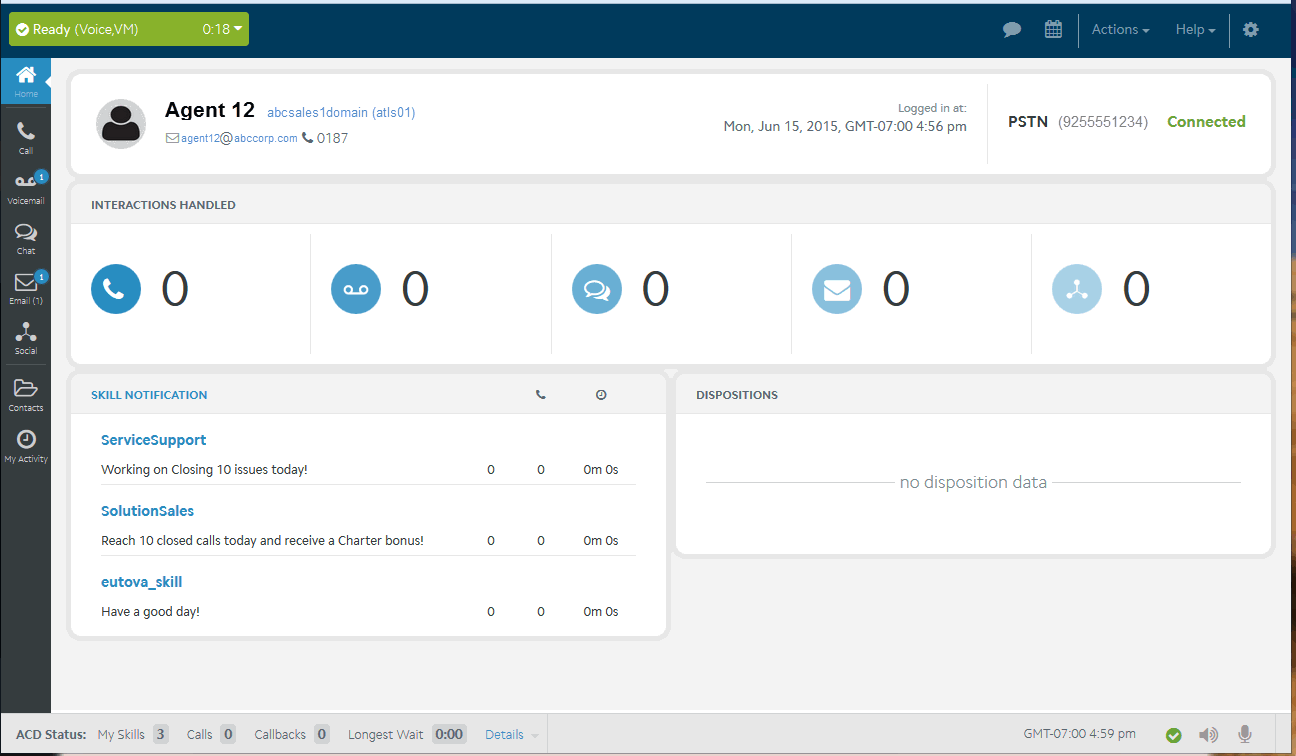
Open the Five9 user menu from the agent workspace. - Choose Settings from the menu.
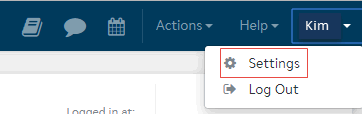
Open the Five9 Settings panel. - Select Audio Devices. Set Audio Output to Connect Speaker for incoming or bidirectional translation.
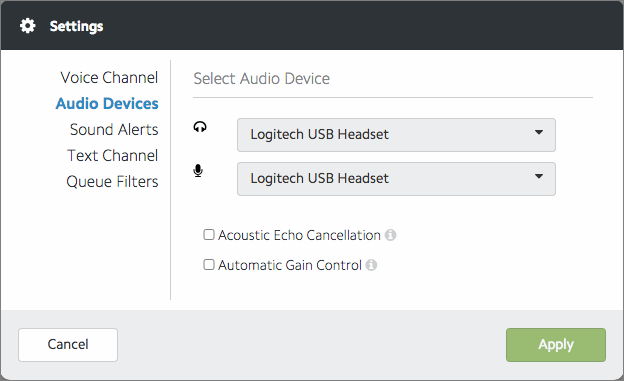
Choose the audio output and microphone in Five9 Audio Devices. - Set Microphone to Connect Mic for outgoing or bidirectional translation. For outgoing-only translation, keep the Five9 speaker on the physical headset.
- Review Automatic Gain Control and Acoustic Echo Cancellation. Start with both disabled for a controlled baseline; enable only the control that matches a reproducible symptom.
- Click Apply, start a softphone or PSTN test call, and confirm that the selected devices are still active.
Review Five9 audio controls
Five9 can alter the signal after the device route is selected. Change one processing option at a time and repeat the same short test.
- Automatic Gain Control: enable it only when the microphone level is inconsistent. If Connect is already controlling the level, leave it off to avoid competing processing.
- Acoustic Echo Cancellation: it can reduce echo, but with a correctly selected headset it is usually best to begin disabled. Enable it only when actual echo is reproducible.
- Audio Output: choose from the available speakers. A plugged-in external headset should appear in the list.
- Apply: save the settings before starting the call; reopening Audio Devices is a quick way to confirm the saved pair.
Validate the complete call
A saved device name does not prove that the live route works. Test the physical input, Connect processing, Five9 audio path, and remote playback as one complete chain.
- Run How I Sound? and confirm that the physical microphone reaches Connect clearly.
- Start a private Five9 softphone or PSTN test call and verify the active microphone and speaker.
- Press CONNECT-ON and confirm that the session timer starts and live transcription responds.
- Speak a complete sentence and ask the remote participant whether they hear the expected translated or natural signal.
- Test the reverse direction when using bidirectional or incoming-only translation.
Resolve common issues
Use the symptom to identify the layer that needs attention instead of changing every setting at once. Confirm the current device names, make one correction, and repeat the same short test.
| Symptom | Likely cause | Next check |
|---|---|---|
| Connect devices are missing | Five9 cached its device list | Open Connect first, then reopen Five9 Audio Devices. |
| The recipient hears natural speech | The physical microphone is active | Select Connect Mic in Five9. |
| Incoming translation is silent | The speaker bypasses Connect | Select Connect Speaker for Audio Output. |
| Speech is clipped or metallic | Overlapping gain, echo, or enhancement controls | Disable one processing option and retest. |
| Settings do not persist | Apply was not confirmed or the session cached old values | Click Apply, reopen Audio Devices, and relaunch the softphone session if needed. |
Frequently asked questions
These answers cover the Five9 choices most likely to change the result. Confirm the translation direction before applying a recommendation, then keep the last working configuration available.
Which Five9 devices should I select?
Select Connect Mic for outgoing translation and Connect Speaker for incoming translation. Use both for bidirectional calls.
Should Automatic Gain Control be enabled?
Start disabled for a controlled baseline. Enable it only when the microphone level is unstable, then repeat the same test to confirm it improves the result.
Should Acoustic Echo Cancellation be enabled?
Start disabled when using a headset. Enable it only if echo is reproducible, because extra processing can change the signal Connect is routing.
Why are the Connect devices not listed?
Open Connect first, confirm the virtual devices in the operating system, then close and reopen Five9 so Audio Devices refreshes.
How do I validate Five9?
Click Apply, place a private softphone or PSTN call, press CONNECT-ON, and confirm what the remote participant hears in both directions.
Support
Need help? Get in touch with our Support Team for assistance. Include Five9, the station type, operating system, selected microphone and speaker, processing options, translation direction, and the exact step that failed.
Was this article helpful?