
Nice CXone Softphone live translation with Connect
Configure CXone Softphone Devices for reliable Connect microphone, speaker, ring, and echo-control routing.
Prepare Nice CXone Softphone
CXone Softphone keeps its audio choices in Softphone → Preferences → Devices. Open Connect first, keep the physical headset available, and establish a short call baseline before changing the softphone.
- Connect: select the physical headset and the languages required for the test.
- Operating system: confirm that Connect Mic and Connect Speaker are present.
- CXone: sign in with an agent account that can open Softphone Preferences.
- Baseline: use a private call and test both the headset mode and the speakerphone mode if your workflow uses both.
Choose the device pair
Use Connect Mic for translated outgoing speech and Connect Speaker when incoming speech must also pass through Connect. Keep the ring device on the physical headset when CXone exposes a separate choice.
| Translation direction | CXone microphone | CXone speaker |
|---|---|---|
| Bidirectional | Connect Mic | Connect Speaker |
| Outgoing only | Connect Mic | Physical headset |
| Incoming only | Physical headset | Connect Speaker |
Configure CXone Softphone Devices
The Devices panel contains Headset Mode, Speakerphone Mode, Other Devices, and Test Devices. Configure the mode used for the current call, then save with OK.
- Open Softphone → Preferences, then click the Devices tab.
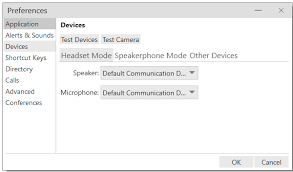
Open Preferences, choose Devices, and select the call mode tab. - For a headset call, select Headset Mode. Set Speaker to Connect Speaker for incoming or bidirectional translation, and set Microphone to Connect Mic for outgoing or bidirectional translation.
- For speakerphone calls, select Speakerphone Mode. Choose the same Connect pair, and use Reduce Echoes from Speakers (AEC) only when echo is actually present.
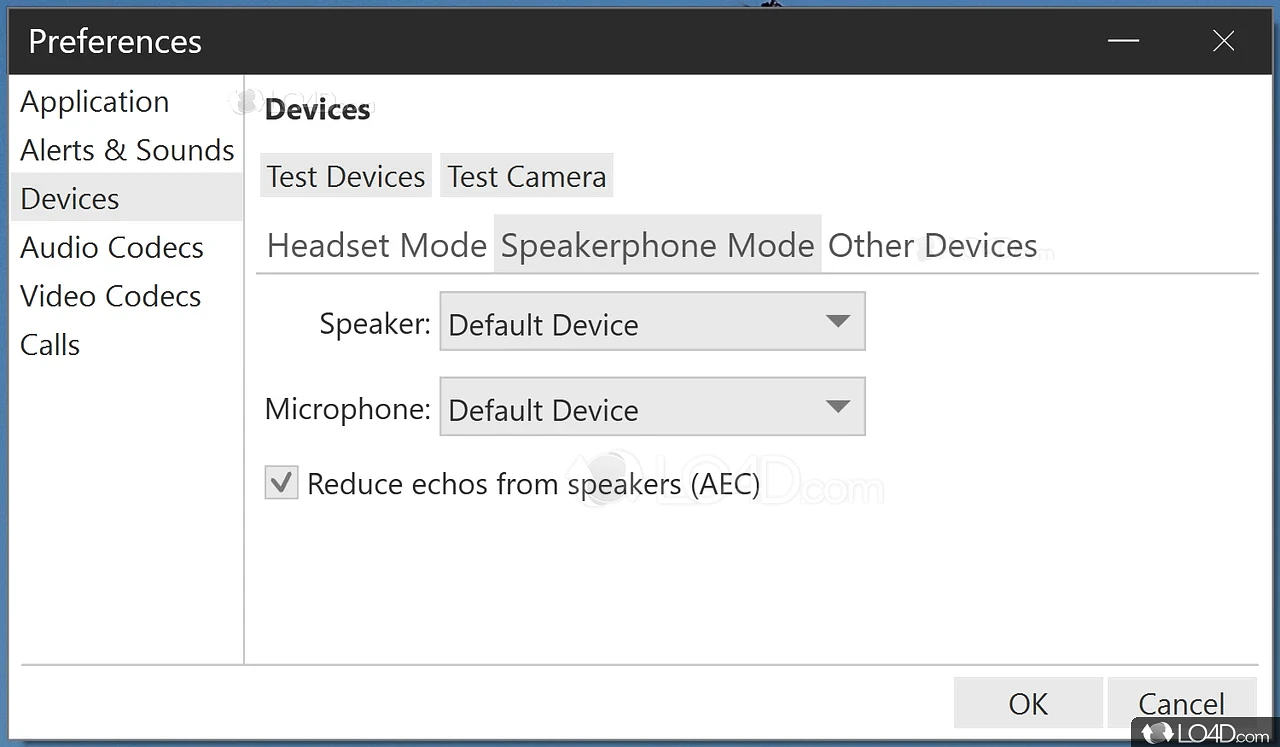
Speakerphone Mode exposes the speaker, microphone, and echo-cancellation controls. - Open Other Devices and set Ring on to the physical headset or the device that should play the incoming ringtone.
- Click OK, then reopen Preferences if needed to confirm that the selected devices were saved.
Review CXone audio controls
Headset Mode and Speakerphone Mode are separate device routes. Make the change in the mode used by the call, and avoid adding echo processing until the route itself has been validated.
- Headset Mode: use the Connect pair for calls through the headset.
- Speakerphone Mode: use Connect Mic and Connect Speaker when the call must be bidirectional through Connect.
- Reduce Echoes from Speakers (AEC): enable it only when speakerphone audio produces a reproducible echo. With a headset, start with it disabled.
- Other Devices: keep Ring on separate from the call microphone and speaker unless the workflow requires the same device.
Test the complete call
Use CXone’s built-in device test after saving the route, then confirm it again in a real short call.
- Open Softphone → Preferences → Test Devices and follow the device test.
- Run How I Sound? and confirm that the physical microphone reaches Connect clearly.
- Place a private CXone call and verify the active microphone, speaker, and ringtone behavior.
- Press CONNECT-ON and confirm that the timer and live transcription respond.
- Ask the remote participant whether they hear the expected translated or natural signal, then test the reverse direction when using bidirectional translation.
Resolve common issues
Use the symptom to identify the layer that needs attention. Change one setting at a time and repeat the same short device test.
| Symptom | Likely cause | Next check |
|---|---|---|
| The recipient hears natural speech | CXone is using the physical microphone | Select Connect Mic in the active mode. |
| Incoming translation is silent | CXone is using the physical speaker | Select Connect Speaker in the active mode. |
| The ringtone is missing | Ring on is set to a disconnected device | Open Other Devices and choose the physical headset. |
| Speakerphone audio echoes | Speakerphone output is being picked up by the microphone | Enable Reduce Echoes from Speakers (AEC), then retest. |
| The headset route works but speakerphone does not | The two modes have separate device choices | Configure Speakerphone Mode independently. |
Frequently asked questions
These answers cover the CXone choices most likely to change the result. Confirm the active mode before changing another setting.
Which CXone devices should I select?
Select Connect Mic for outgoing translation and Connect Speaker for incoming translation. Use both for bidirectional calls.
Do I need to configure Headset Mode and Speakerphone Mode separately?
Yes. CXone stores the choices under each mode. Configure the mode used by the call, and repeat the setup if your workflow switches modes.
Should I enable AEC?
Start disabled with a headset. Enable Reduce Echoes from Speakers (AEC) only when speakerphone echo is reproducible, then test again.
Where do I choose the ringtone device?
Open Other Devices and use the Ring on menu. Keeping the ring device on the physical headset makes call alerts easier to hear without changing the translation route.
How do I validate CXone?
Use Test Devices, place a private call, press CONNECT-ON, and confirm what the remote participant hears in both directions.
Support
Need help? Get in touch with our Support Team for assistance. Include CXone station mode, selected microphone and speaker, Ring on device, AEC state, translation direction, and the exact step that failed.
Was this article helpful?