
Configure Connect with Zoom
Configure Zoom microphone, speaker, audio profile, and advanced processing for clear Connect translation.
Prepare Zoom
Prepare the physical and virtual audio paths before changing Zoom. Connect the wired headset, open Connect, and confirm that the real microphone and speaker work in How I Sound?. Keep a record of the original Zoom devices so the configuration can be reversed if the test is unsuccessful.
- Connect: select the physical headset and the correct source and destination languages.
- Operating system: confirm that Connect Mic and Connect Speaker are present.
- Zoom: sign in with an account allowed to change audio settings.
- Test participant: use a colleague or second device that can confirm both directions.
Choose the device pair
The correct speaker depends on which side of the conversation must be translated. Always use Connect Mic for translated outgoing speech, then route incoming speech through Connect Speaker only when Connect needs to process that direction. Keep alerts and ringtones on the physical headset whenever Zoom provides a separate selector.
| Translation direction | Zoom microphone | Zoom speaker |
|---|---|---|
| Bidirectional | Connect Mic | Connect Speaker |
| Outgoing only | Connect Mic | Physical headset |
| Incoming only | Physical headset | Connect Speaker |
Configure Zoom
Follow the application-specific path below after Connect is ready. Save the device selection, then reopen the relevant settings to confirm that Zoom did not revert to a system default or a previously connected headset. Complete the sequence before enabling Connect on a live conversation.
- Open Connect and verify the physical headset before launching Zoom.
- Open Zoom Settings and select Audio.
- Choose Connect Mic as the microphone. Choose Connect Speaker for bidirectional translation, or the physical headset for outgoing-only translation.
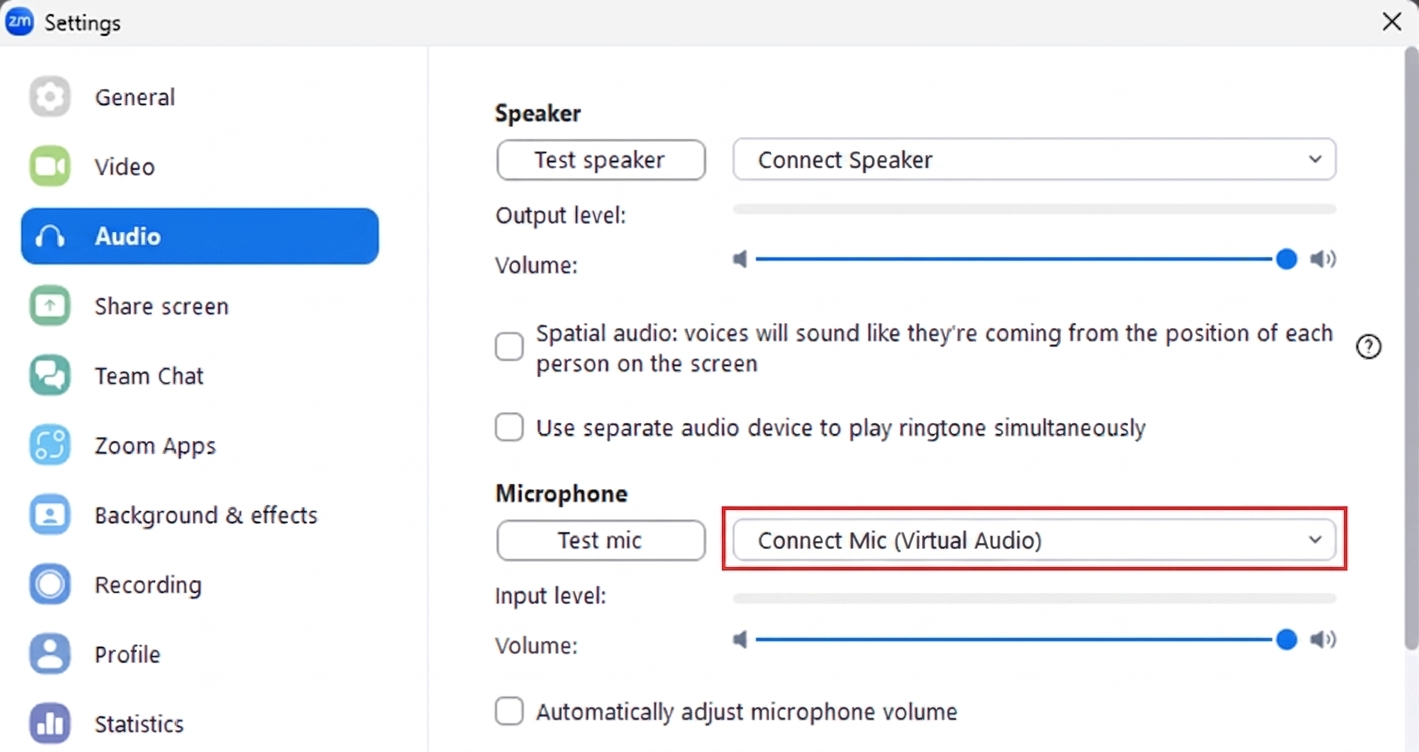
Assign Connect Mic and the correct speaker, then disable automatic microphone volume for the baseline. - Disable Automatically adjust microphone volume during the controlled baseline test.
- Select Original sound for musicians as the Audio profile, while leaving high-fidelity music mode and stereo audio off unless a separate use case requires them.
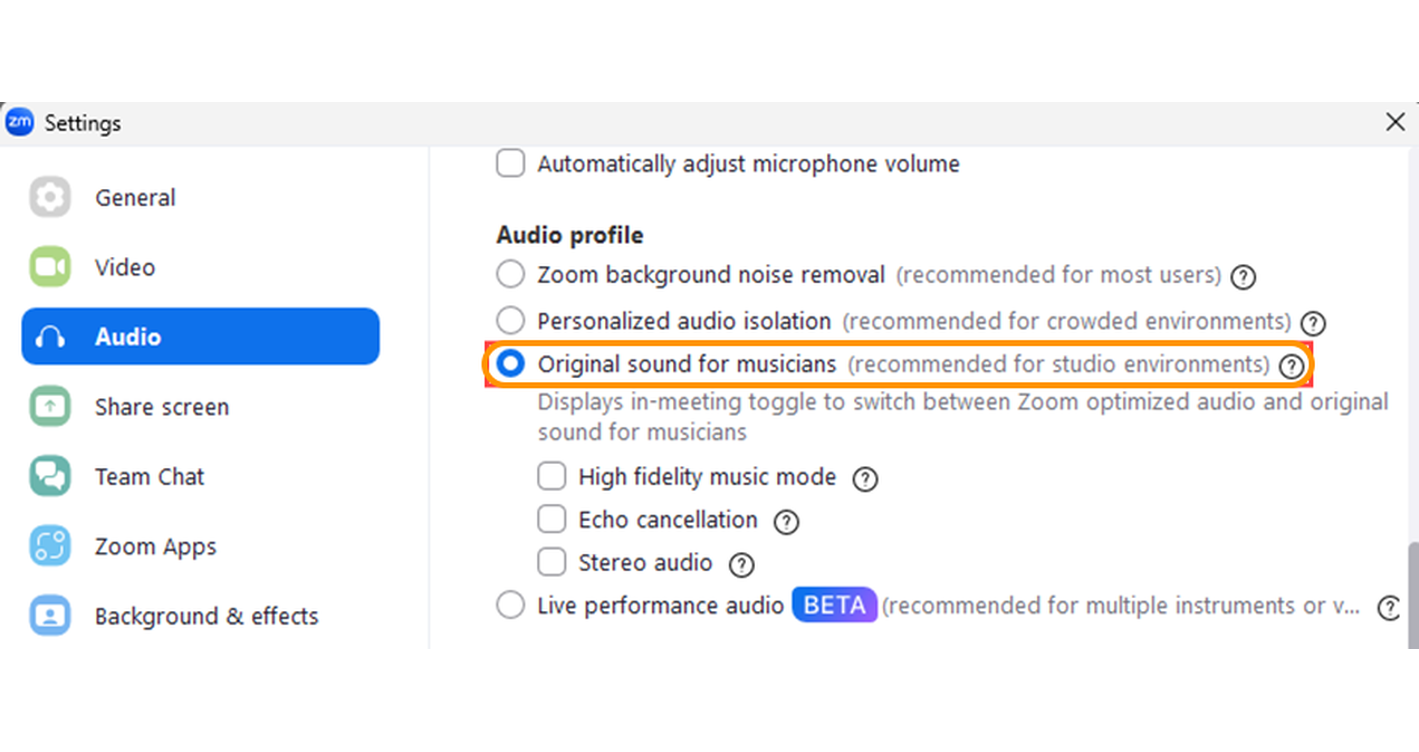
Select Original sound for musicians while leaving high-fidelity music mode and stereo audio off. - Open Advanced, set Windows audio-driver signal processing to Off (Windows — Raw) when available, and start with Echo cancellation on Auto.
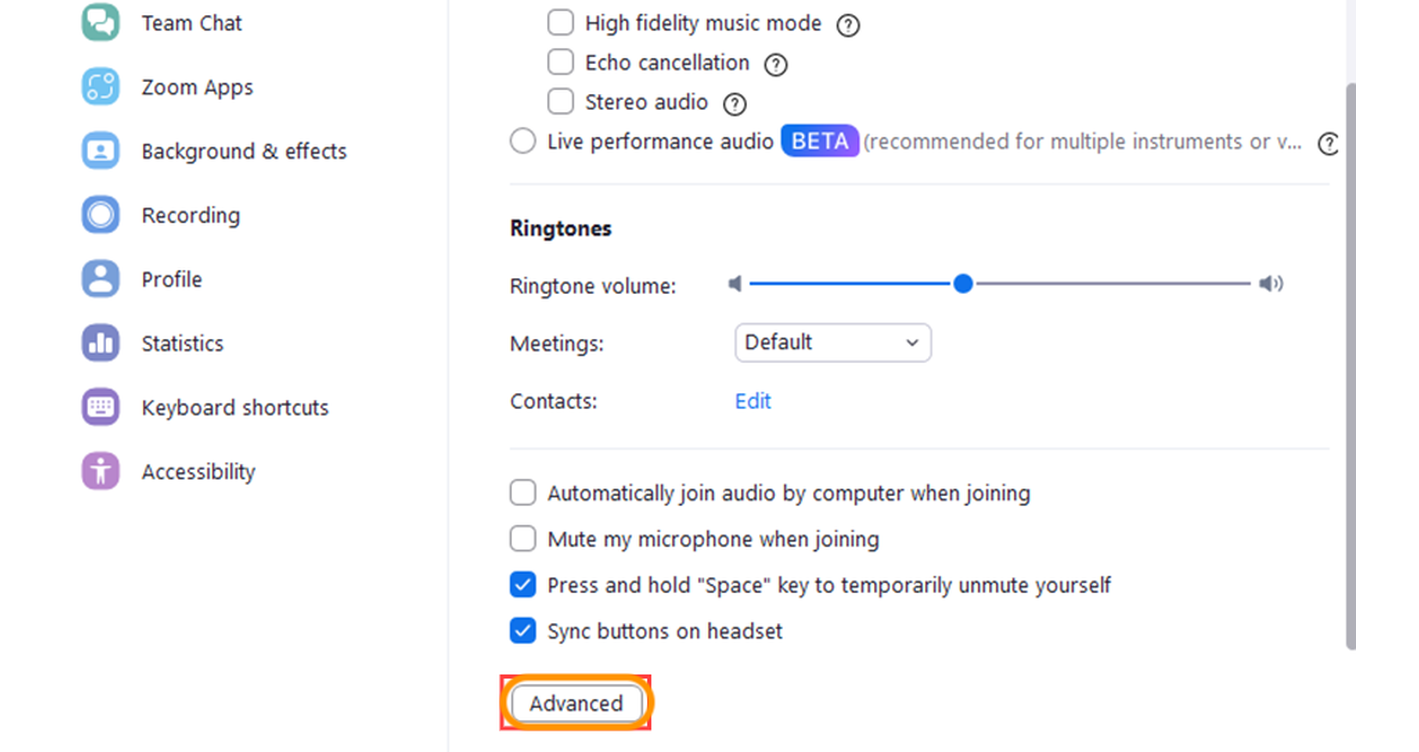
Select Advanced at the bottom of the Audio settings. 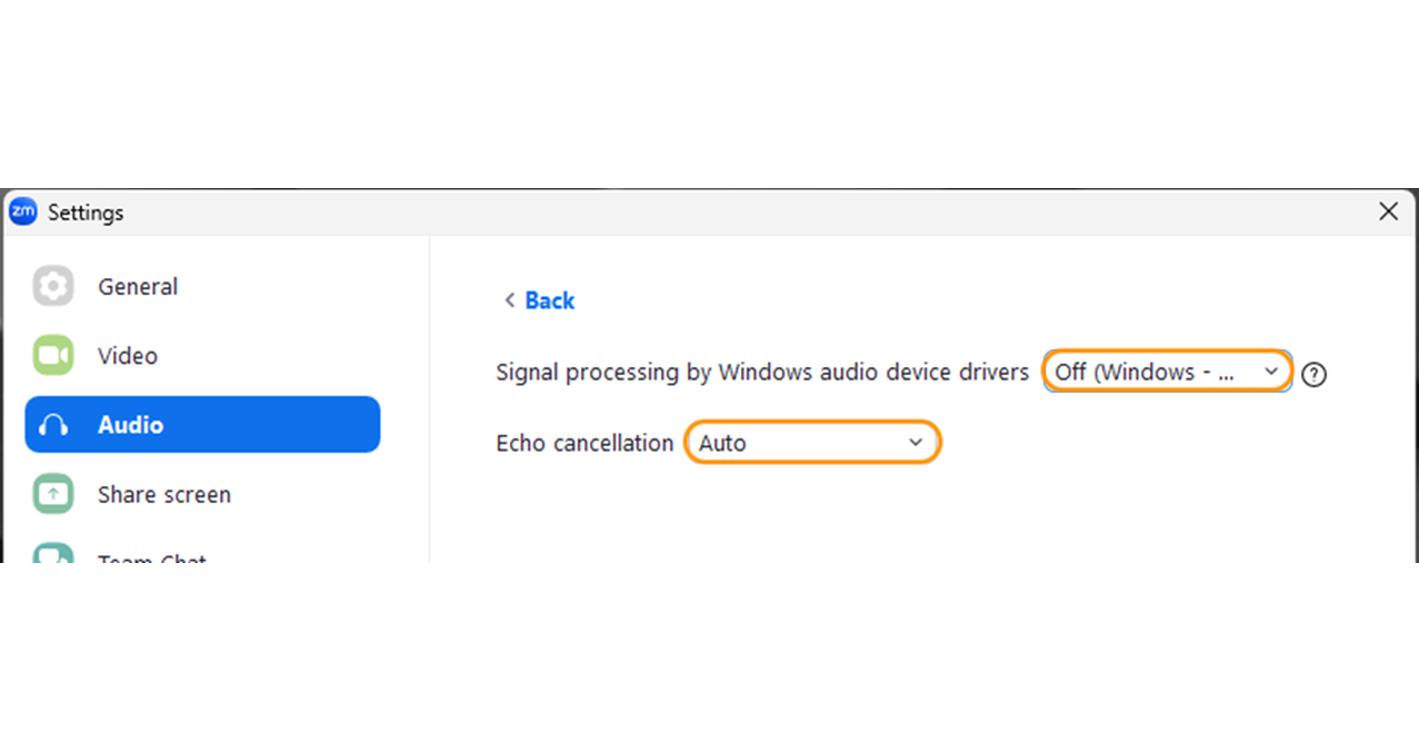
Use the raw Windows audio path when available and begin with echo cancellation on Auto. - Join a private test meeting and confirm the selected devices again from the in-meeting audio menu.
Control extra processing
A calling platform can apply automatic gain, echo control, noise suppression, or voice enhancement before Connect receives the signal. Begin with the simplest stable path and disable overlapping processing during the baseline test. Re-enable one control only when the real call environment requires it and the recipient confirms a measurable improvement.
- Turn off automatic microphone-volume changes during baseline testing.
- Original sound reduces competing Zoom voice processing, but high-fidelity music and stereo modes are not required for speech translation.
- Keep echo cancellation on Auto unless a closed-headset test proves another setting is better.
Validate the complete call
A saved setting is not proof that the integration works during an active call. Test the physical headset, Connect processing, the Zoom virtual route, and remote playback as one complete chain. Use the same account, network, VPN, and headset that will be used in production so the result represents the real workflow.
- Use How I Sound? to confirm a clean physical microphone signal.
- Join an internal call and verify the active Zoom devices inside the call surface.
- Press CONNECT-ON and confirm that the timer starts and live transcription responds.
- Speak a complete sentence and ask the remote participant what they hear.
- Test the reverse direction when using bidirectional or incoming-only translation.
- Reconnect the headset once and confirm that Zoom keeps or correctly restores the saved route.
Resolve common issues
Use the symptom to identify the layer that needs attention instead of reinstalling every component. Confirm the current device names before changing them, then make one correction and repeat the same test. If the issue continues, record the application version, operating system, selected devices, translation direction, and the exact point where audio stops.
| Symptom | Likely cause | Next check |
|---|---|---|
| Connect devices are missing | Zoom cached its device list | Open Connect first, then restart Zoom. |
| The recipient hears natural speech | The physical microphone is active | Select Connect Mic in the active call settings. |
| Incoming translation is silent | The call speaker bypasses Connect | Select Connect Speaker for the incoming path. |
| Speech is clipped or metallic | Competing audio processing | Disable one gain, suppression, or enhancement control and retest. |
Frequently asked questions
These answers cover the decisions most likely to change the Zoom result. Confirm the translation direction before applying a recommendation because outgoing-only and bidirectional calls do not use the same speaker route. Keep the last working configuration available so a failed adjustment can be reversed without disrupting the next call.
Why use Original sound for musicians with Connect?
It reduces Zoom processing that can alter speech before or after Connect handles it. Keep high-fidelity music mode and stereo audio off for the baseline, then confirm the recipient hears a stable translated voice.
Which devices should I select in Zoom?
Select Connect Mic whenever outgoing speech must be translated. Select Connect Speaker when incoming speech must also pass through Connect; otherwise keep the physical headset as the call speaker.
Why are Connect devices missing from Zoom?
Close Zoom, confirm that Connect Mic and Connect Speaker appear in the operating system, keep Connect open, and relaunch the desktop application. Applications and browser tabs often keep the device list that existed when they started.
How do I know the Zoom integration is ready?
Run How I Sound?, place a real test call, press CONNECT-ON, confirm that the timer and transcription respond, and verify what both participants hear. A saved device name alone does not prove the complete route.
Support
Need help? Get in touch with our Support Team for assistance. Include the calling application, operating system, selected microphone and speaker, translation direction, and the exact step that failed. A short description of the expected result and what happened instead helps the team respond more quickly.
Was this article helpful?