
Tour the Connect workspace
Learn where translation, audio, transcription, voice, account, and support controls live before your first production call.
Know the main workspace
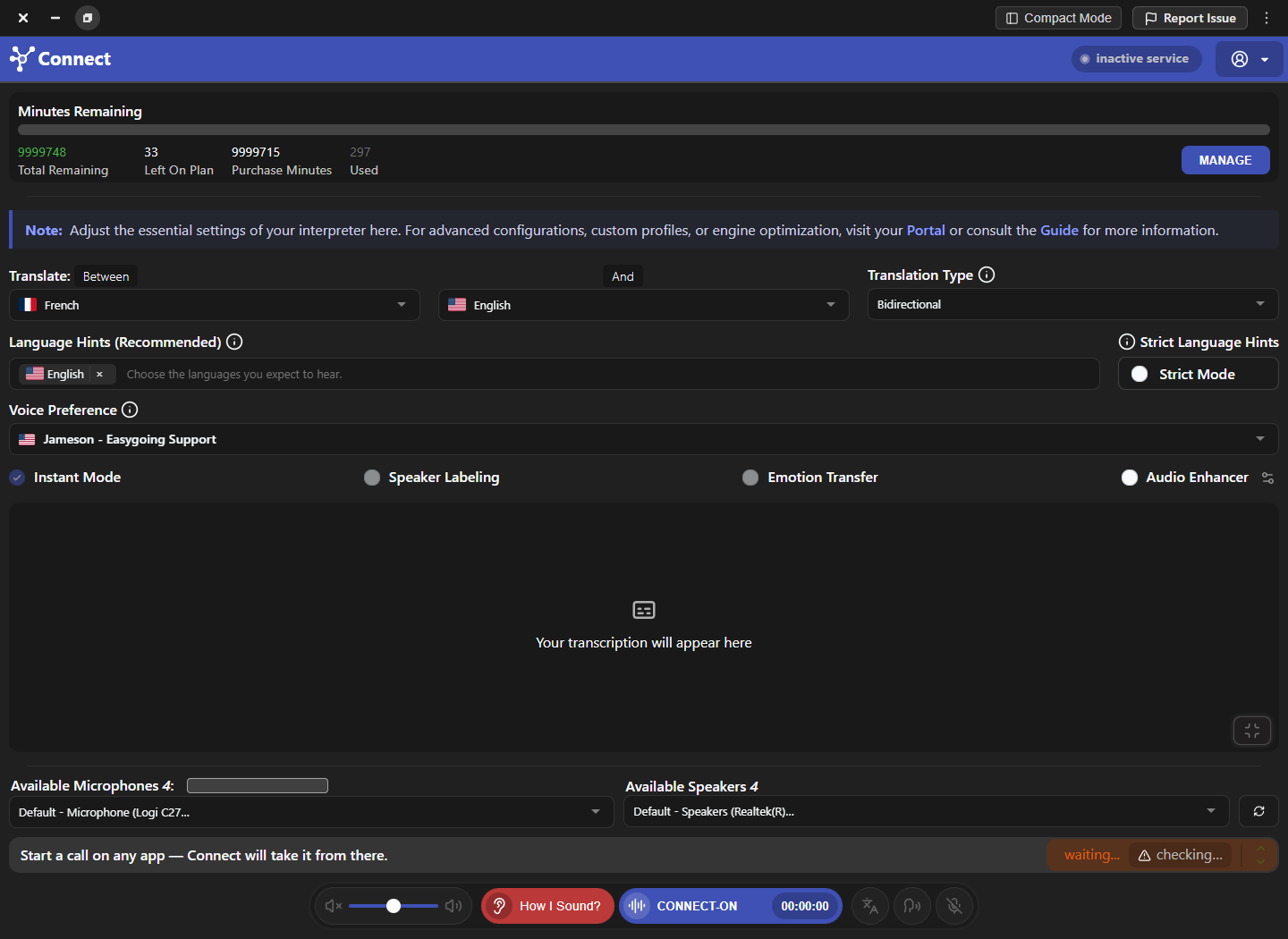
The main workspace keeps the controls needed during a conversation in one place. Read it from top to bottom: remaining minutes, language and translation settings, optional processing controls, the transcription area, physical devices, session status, and the CONNECT-ON control. Knowing this order makes it easier to locate a problem without changing unrelated settings.
Use the Portal for reusable tools
The Connect Portal stores reusable resources that should be prepared before a call rather than edited while someone is waiting. It includes the Voice Library, pronunciation dictionaries, transcription history, speaker labeling, conversation context, Pro Voiceprints, datasets, and—when the account permits it—team management. Open the Portal, make one focused change, then return to Connect to validate it.
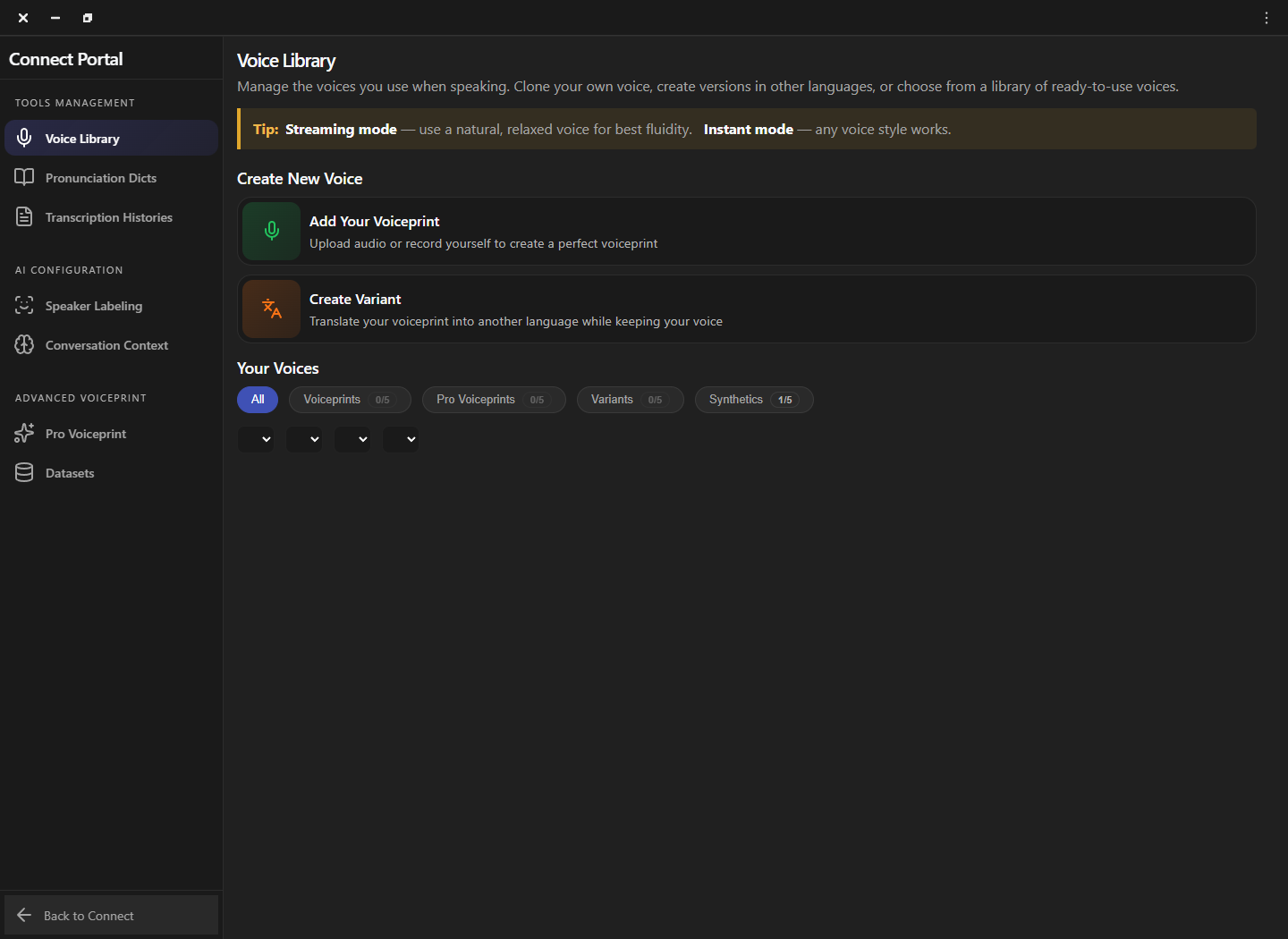
- Voice Library: preview synthetic voices, create a personal voiceprint, or prepare a language variant.
- Pronunciation Dicts: correct repeated names, acronyms, brands, and specialist terms.
- Conversation Context: describe the topic, roles, and vocabulary that Connect should expect.
- Speaker Labeling: review identification voiceprints created when speakers are labeled in transcripts.
Read the live session controls
The lower session area answers three different questions: which physical devices are selected, whether Connect recognizes a call, and whether translation is running. Keep those questions separate. A selected microphone does not prove the calling application is routed, and a detected call does not prove CONNECT-ON is active. Confirm each state in sequence before evaluating translation quality.
- Before the call: confirm languages, translation type, voice, microphone, and speaker.
- When the dialer opens: verify that Connect detects the calling application and finishes checking the route.
- When CONNECT-ON is active: speak a short natural phrase and ask the recipient what they hear.
- After the call: stop the session and review the transcription only if saving is enabled.
Separate session and account settings
Use live controls for the current conversation and account pages for persistent behavior. The profile area contains region, streaming quality, notification, transcription-saving, voice-matching, audio-enhancement, security, and driver-recovery controls. These settings can affect later sessions, so record the previous value and avoid changing them during an active customer call.
- Profile: maintain region and persistent session preferences.
- Manage: review plan minutes, purchased minutes, usage estimates, and billing history.
- Report Issue: include the calling app, operating system, devices, direction, and failed step.
- Compact Mode: reduce the window only after the complete configuration has been checked.
Frequently asked questions
These answers clarify the decisions that most often affect this workflow. Keep the working microphone, speaker, language pair, and call route unchanged while testing a feature, and return to the simplest verified baseline whenever several simultaneous changes make the result difficult to explain.
Where should I configure a live call?
Use the main Connect workspace for languages, translation direction, voice, physical devices, and CONNECT-ON. Use the Portal for reusable resources such as context, dictionaries, and voiceprints.
Does a selected microphone mean the call is ready?
No. Confirm the physical microphone, the calling application route, Connect’s status strip, and the remote result separately.
When should I use Compact Mode?
Use it after setup is complete and stable. Return to the full workspace whenever you need to inspect routing, transcription, or a warning state.
Which controls may depend on my plan?
Minute allowances and advanced features such as Pro Voiceprints, advanced speaker labeling, voice matching, or emotion transfer can depend on the account plan and administrator settings.
Support
Need help? Get in touch with our Support Team for assistance. Include the feature, operating system, calling application, selected microphone and speaker, language direction, and the exact step that failed. Describe the expected result and what happened instead without including passwords, private call content, or unnecessary personal data.
Was this article helpful?