
Use transcription and speaker labeling
Understand live transcript behavior, identify speakers carefully, and review saved sessions without confusing recognition with generated voice.
Read transcription as a diagnostic signal
The central transcription area shows what Connect recognizes during a session. Use it to compare the spoken language, recognized words, speaker turns, and translated output, but remember that a correct transcript does not prove the remote audio route works. When text is wrong, first check the microphone, language pair, overlap, and context before changing the generated voice.
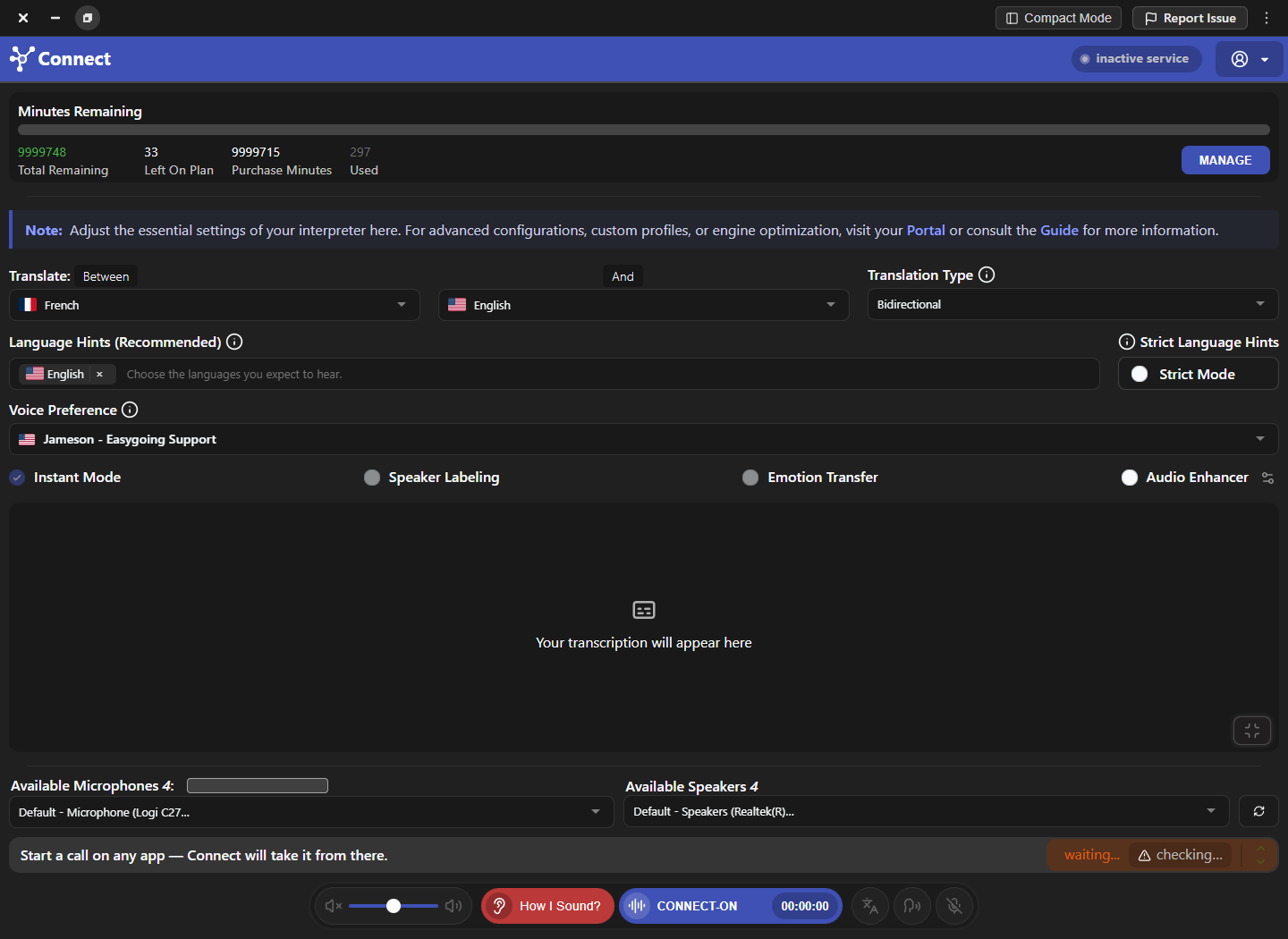
- No text: confirm microphone capture, call detection, permissions, and session state.
- Wrong words: check language, background noise, overlap, context, and pronunciation expectations.
- Correct text but no remote audio: troubleshoot the output route, not recognition.
- Duplicate text or audio: inspect whether the call application captures more than one path.
Enable labels for multi-speaker calls
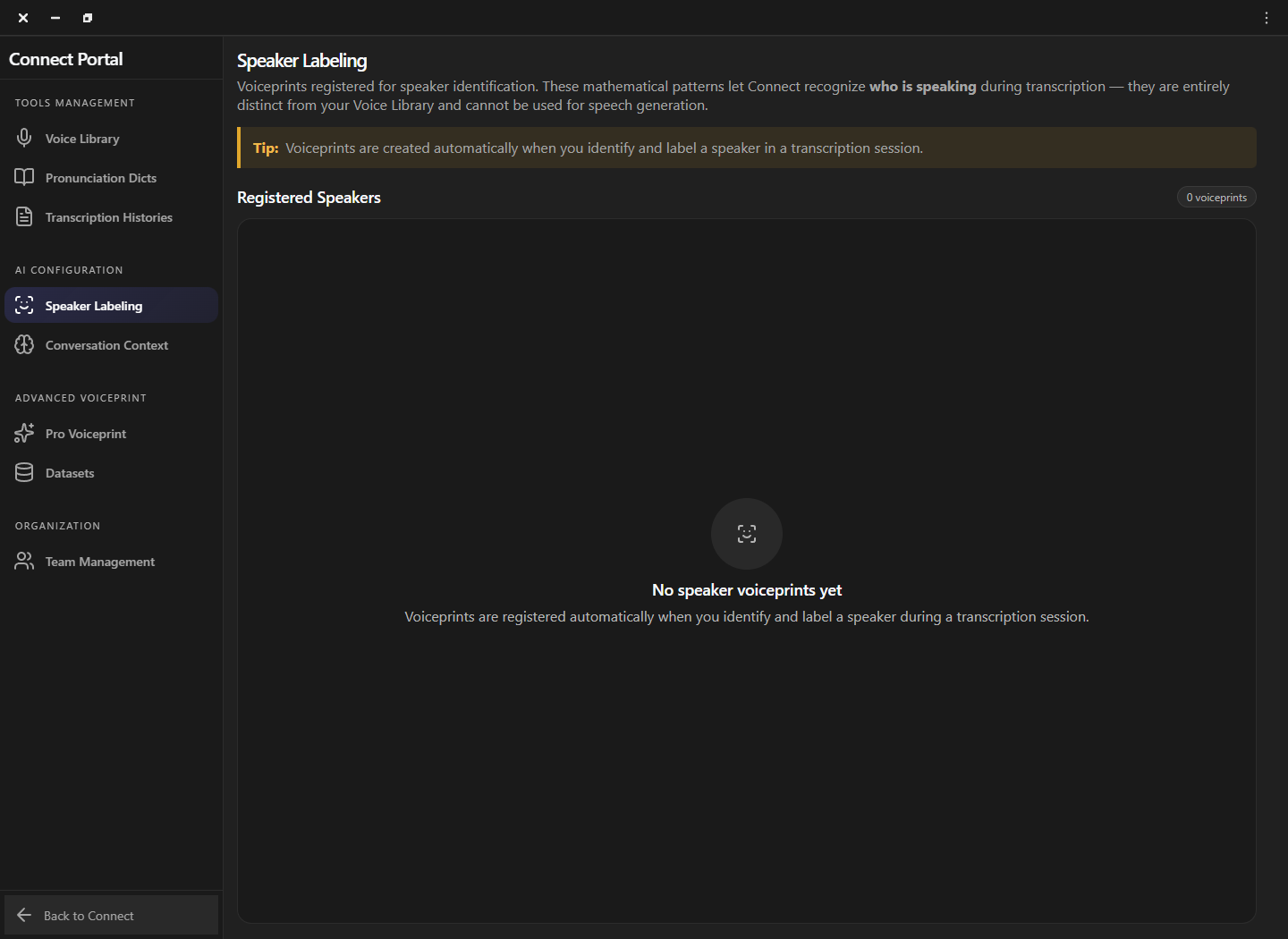
Speaker Labeling separates recognized turns when several people participate. Enable it before the test call, ask people to speak one at a time, and identify labels only when the voice is clear. The Portal stores mathematical identification voiceprints created from labeled transcript sessions. These are distinct from Voice Library voices and cannot generate speech.
Create reliable speaker references
Label a speaker from a clean, uninterrupted turn with enough natural speech to distinguish the voice. Avoid introductions spoken over hold music, overlapping participants, speakerphone echo, or translated playback. If a label repeatedly follows the wrong person, remove the unreliable reference and create a new one from a clearer session rather than adding more uncertain examples.
Review and retain transcripts deliberately
When auto-save is enabled, transcription history can contain prior sessions that are searchable, exportable, or removable. Decide the approved storage folder, retention period, and access policy before enabling it for sensitive conversations. Confirm that participants and the organization permit transcription, and remove test sessions or obsolete records according to policy rather than allowing history to accumulate unnoticed.
- Before recording: confirm consent, policy, and whether saving is necessary.
- After the call: review speaker labels and sensitive content before sharing or exporting.
- Storage: use an approved local or managed folder with appropriate access controls.
- Deletion: understand whether removal is permanent before using bulk history actions.
Validate recognition separately from translation
Use a short script with one name, one number, one specialist term, and a speaker handoff. Verify the source transcript first, then the translated text, then the remote audio. This order shows whether the problem begins at capture, recognition, translation, voice generation, or routing. Keep the same script when comparing context or dictionary changes.
Frequently asked questions
These answers clarify the decisions that most often affect this workflow. Keep the working microphone, speaker, language pair, and call route unchanged while testing a feature, and return to the simplest verified baseline whenever several simultaneous changes make the result difficult to explain.
Is Speaker Labeling the same as a voiceprint?
No. Speaker-labeling voiceprints identify people in transcripts. Voice Library voiceprints generate speech. The application keeps these systems separate.
Why is the transcript correct but the recipient hears nothing?
Recognition is working, so troubleshoot the output device, calling application route, translation direction, and CONNECT-ON state.
Should I save every transcription?
No. Save only when there is a clear purpose, participant permission, and an approved retention and storage policy.
How can I improve a wrong speaker label?
Use a clean single-speaker turn, avoid overlap and echo, and replace unreliable references instead of repeatedly labeling uncertain segments.
Support
Need help? Get in touch with our Support Team for assistance. Include the feature, operating system, calling application, selected microphone and speaker, language direction, and the exact step that failed. Describe the expected result and what happened instead without including passwords, private call content, or unnecessary personal data.
Was this article helpful?