
Headset & audio recommendations
Choose a dependable headset, remove competing audio effects, and validate the complete signal path before using Connect on live calls.
Choose a compatible headset
Connect performs best when it receives a clean, stable microphone signal with as little upstream processing as possible. Start with a wired USB headset and a boom microphone that stays close to the speaker's mouth. Comfort, repeatable positioning, and a reliable connection matter more than premium branding or extra effects.
Review reference devices
The supplied Sanas documentation certifies the models below for Sanas, a comparable real-time voice-processing workflow. They are useful candidates for a Connect equipment trial because they include common wired USB and boom-microphone designs. However, an external certification is not a Connect certification; validate the exact model, firmware, adapter, operating system, and calling application before a team-wide purchase.
Reference device shortlist10 models
| Brand | Model | Connection | Connect status |
|---|---|---|---|
| Amazon Basics | AB-EH01 | Wired USB | Validate locally |
| Cyber Acoustics | AC-304TR | Wired USB | Validate locally |
| Dell | Stereo Headset WH1022 | Wired USB | Validate locally |
| EPOS | ADAPT 160 | Wired USB | Validate locally |
| HP | Stereo USB Headset G2 | Wired USB | Validate locally |
| Jabra | BIZ 1500 | Wired USB | Validate locally |
| Jabra | Evolve2 30 SE | Wired USB | Validate locally |
| Poly | Blackwire 3220 | Wired USB | Validate locally |
| Poly | Blackwire 5220 | Wired USB | Validate locally |
| Yealink | UH34 | Wired USB | Validate locally |
Do not assume that every variant is equivalent. A USB-A and USB-C edition, a wireless edition, or the same headset paired with a different inline adapter may expose different drivers and processing. Record the complete model name, connection type, firmware version, and adapter part number when evaluating a device.
Disable double processing
Two processors trying to clean or level the same microphone can pump the volume, clip syllables, or make speech sound metallic. Let Connect handle the primary voice processing, then turn off overlapping effects at the operating-system, calling-app, and headset levels. Change one setting at a time and repeat the same test phrase so the source of any improvement remains identifiable.
| Location | Features to disable or test off |
|---|---|
| Operating system | Audio enhancements, microphone effects, built-in noise suppression, voice isolation, and automatic gain control |
| Calling application | Noise cancellation or suppression, voice clarity, studio effects, and automatic microphone volume |
| Headset or companion app | AI noise cancellation, microphone enhancement, automatic level control, equalizer presets, and broadcast effects |
Position the microphone
A consistent boom position helps Connect receive every phrase at a stable level without breath noise or clipping. Place the microphone near the corner of the mouth, then leave it there for the full call. If several agents share the same headset model, document the position with a simple visual reference so each workstation starts from the same baseline.
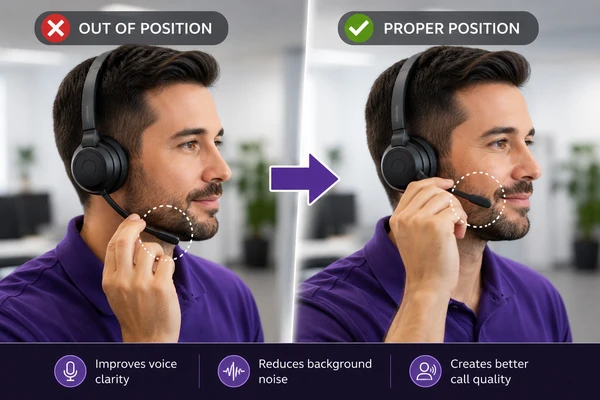
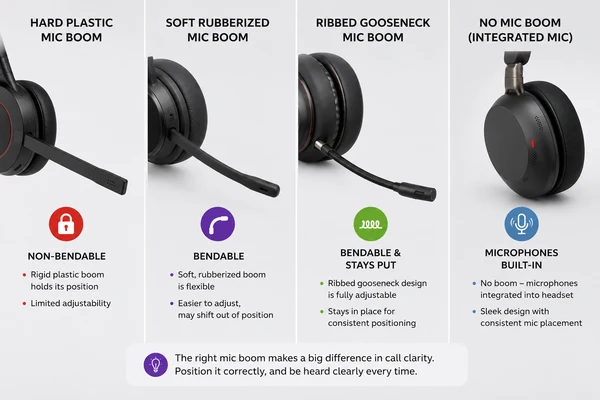
- Place the boom one to two finger widths from the corner of your mouth.
- Aim it beside your mouth, not directly in front of your breath.
- Speak at your normal call volume; do not whisper to avoid peaks.
- Keep the boom in the same position throughout the call.
Validate before deployment
A model should pass the complete workflow, not merely appear in the device menu. Test Connect, the operating system, and the real calling application together, using the same adapter and settings that agents will receive. Keep a short validation record so a later driver, firmware, or policy change can be compared with a known-good result.
- Connect the headset directly. Use a stable USB port and avoid an unpowered hub during the first test.
- Verify device detection. Confirm that the physical headset appears under Available Microphones and Available Speakers in Connect.
- Check the local signal. Press How I Sound?, speak one complete sentence, and listen for clipping, hiss, missing first words, or changing volume.
- Make a real test call. Confirm that the calling application uses the required Connect virtual devices and ask the recipient to judge clarity, level, delay, and naturalness.
- Repeat operational checks.
- Disconnect and reconnect the headset.
- Wake the computer from sleep and confirm that the selected devices remain correct.
- Run a longer call to detect drift, battery behavior, or unexpected device switching.
- Save the approved configuration. Record the model, firmware, adapter, OS version, calling app, and disabled processing features.
Recognize poor-fit setups
Some devices can work for occasional calls but introduce too much variability for a repeatable production setup. If an issue appears, isolate the headset from the network and routing variables before replacing hardware. Compare a direct wired USB test with the current setup; a clear improvement usually identifies the device, adapter, wireless mode, or companion processing as the cause.
- Laptop microphone: too far from the speaker and more likely to capture room echo or keyboard noise.
- Bluetooth hands-free mode: may add compression, latency, pairing changes, and battery-related interruptions.
- Feature-heavy companion software: can apply noise removal, voice enhancement, spatial audio, or automatic volume before Connect.
- Unstable USB path: loose hubs, weak ports, and analog adapters can cause hiss, dropouts, or device switching.
- Open speakers: can feed playback back into the microphone and trigger aggressive echo control.
Headset questions
Use these answers to separate a recommendation from a true deployment approval. The safest headset is the one that meets the signal-path requirements and passes the complete test on your own workstation image. Revalidate after a meaningful driver, firmware, operating-system, or calling-app change.
Does Connect require a certified headset?
No specific model is required. Use a wired USB headset with a stable boom microphone, minimal processing, and a successful end-to-end test. Only describe a model as Connect-certified after your organization or Connect has recorded the exact configuration and validation result.
Can I use a Bluetooth headset?
Bluetooth may work, but wired USB is the more predictable baseline for low latency and consistent microphone quality. If wireless use is necessary, test the supplied USB dongle, hands-free mode, reconnect behavior, battery transitions, and a full-length call before deployment.
Should I disable headset noise cancellation?
Disable microphone-side noise cancellation and voice enhancement during the baseline test so Connect receives the least altered signal. If the environment requires an additional feature, re-enable one control at a time and keep it only when the recipient test confirms a measurable improvement.
Why does the same model sound different on another computer?
Firmware, USB adapters, operating-system enhancements, calling-app settings, and companion utilities can change the signal even when the headset name is identical. Compare the full saved configuration, not only the brand and model.
Support
Need help? Get in touch with our Support Team for assistance. Include the calling application, operating system, selected microphone and speaker, translation direction, and the exact step that failed. A short description of the expected result and what happened instead helps the team respond more quickly.