Connect Virtual Cable Installer
One package installs both audio cables and creates your Connect devices automatically. No technical setup required.
Six simple steps
Follow along — each step matches exactly what you'll see on screen.
Download the installer
Click Download installer above. The full VIRTUAL CABLE INSTALLER
folder is packaged into a .zip and downloaded straight to your computer — save it
somewhere easy to find, like your Desktop or Downloads folder.
Unzip the folder
The download arrives as VIRTUAL CABLE INSTALLER.zip. Right-click it and choose
Extract All…, then open the unzipped folder. Keep every file together — don't
move them out of the folder.
.zip preview window — otherwise it won't find its files.Run “INSTALL – Double Click Me”
Inside the folder you'll see a file called INSTALL – Double Click Me. You have two equally good ways to start it:
Double-click the INSTALL – Double Click Me file.
Right-click the file → choose Open (or Run as administrator).
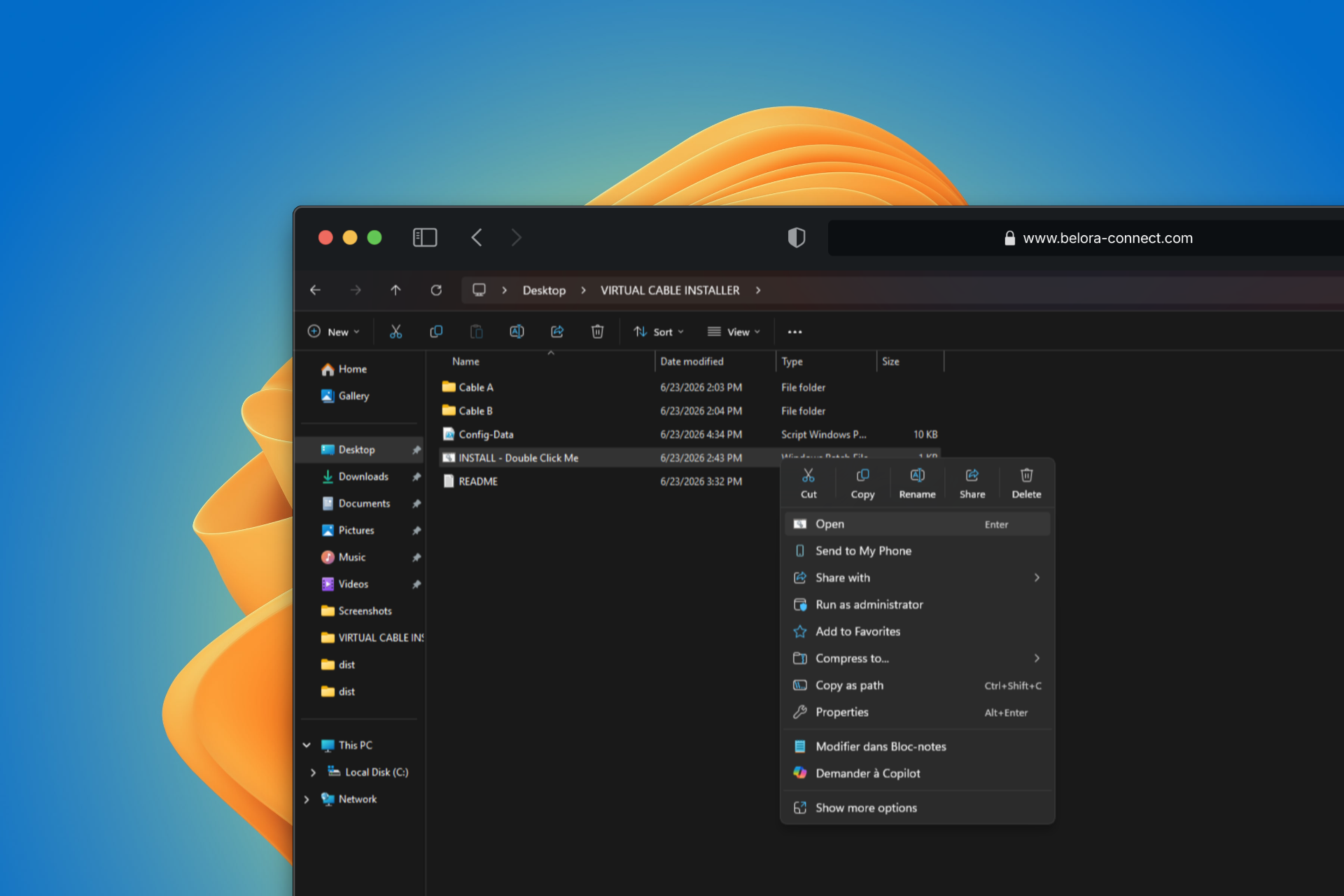
The highlighted file above is the one to run.
Allow it to run
Windows protects you from unknown apps, so a security warning may appear. This is normal — the installer just isn't code-signed yet. Click Run, then click Yes when Windows asks for administrator rights.
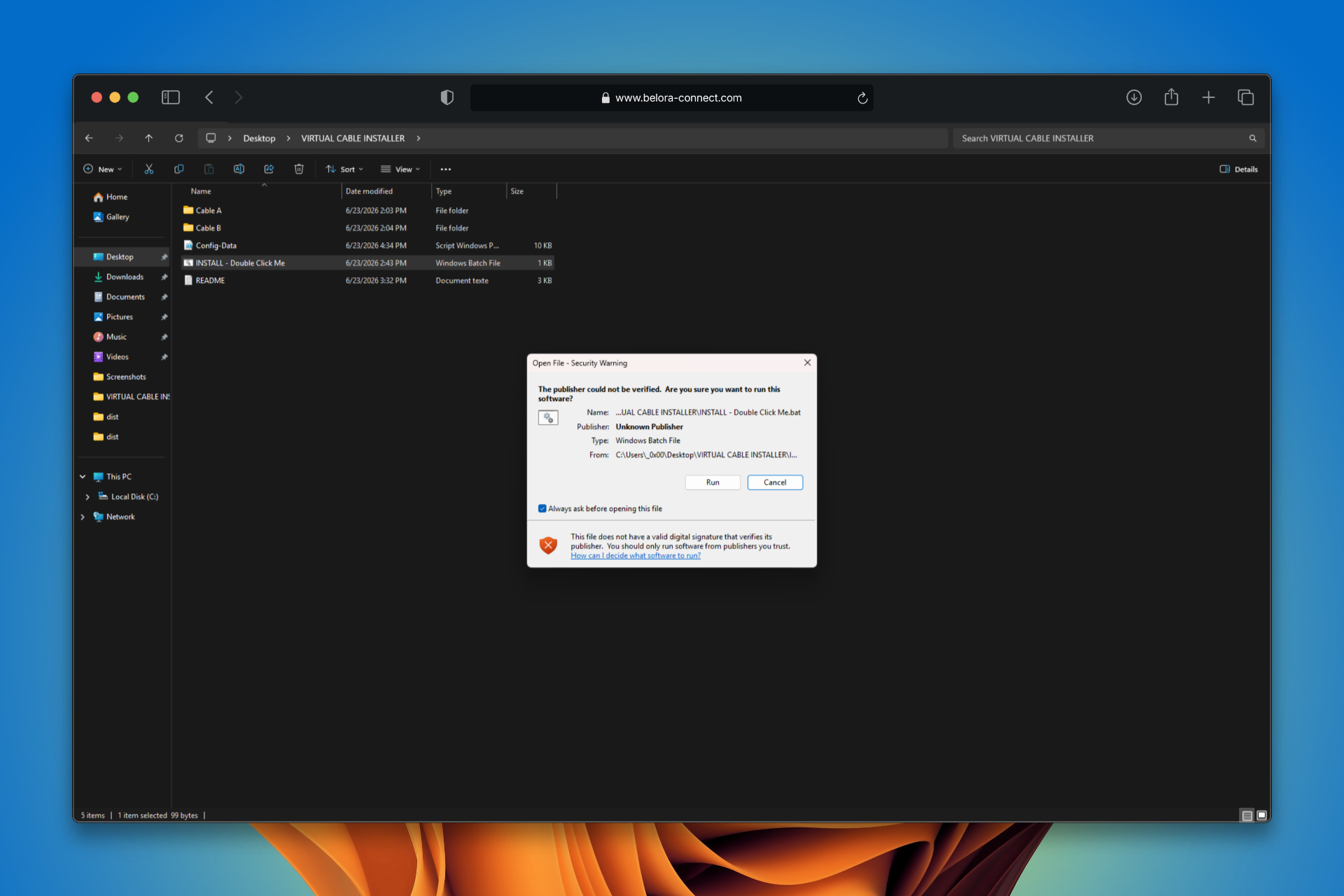
Wait for “Installation done!”
A blue PowerShell window opens and does everything automatically: it installs both cables, renames the audio devices, and restarts the audio service. Just let it run.
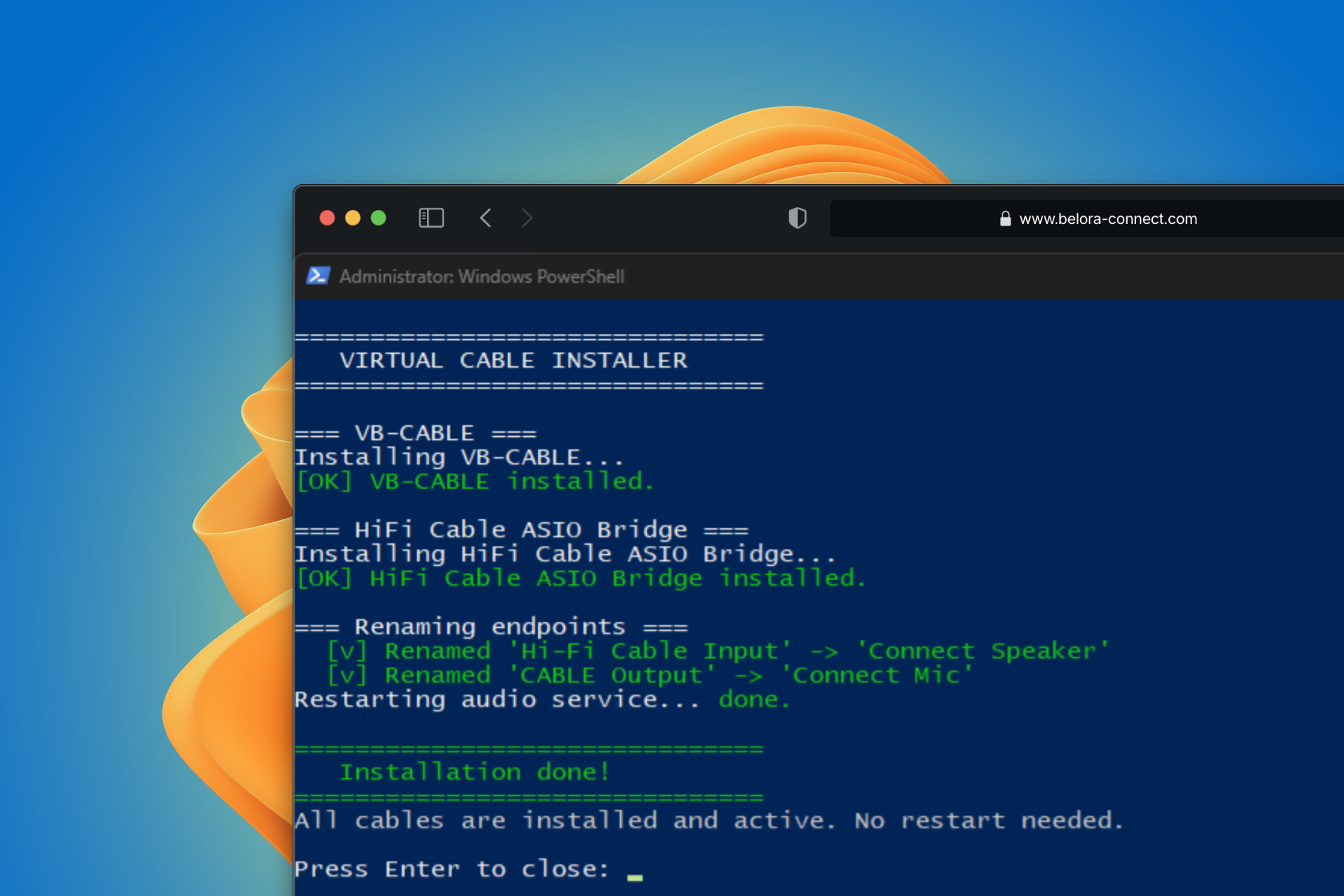
When you see “Installation done!”, press Enter to close the window. If it says a restart is required, reboot now.
Check your new devices
Right-click the speaker icon in your taskbar → Sound settings. You should now see the two Connect devices:
What the installer does
Smart, skip-if-installed
It checks whether each cable is already installed and skips it — re-running is always safe and never breaks anything.
Two cables in one
Installs the VB-Audio Virtual Cable and the Hi-Fi Cable ASIO Bridge silently, in the background.
Friendly device names
Renames the raw audio endpoints to Connect Speaker and Connect Mic so they're easy to pick in any app.
No reboot needed
It restarts the audio service automatically, so the devices are usually ready the moment it finishes.
Troubleshooting
INSTALL – Double Click Me again — the rename step
will complete and the Connect Speaker / Connect Mic devices will appear..zip preview. Keep this structure intact and run from the extracted folder:
VIRTUAL CABLE INSTALLER\ → INSTALL – Double Click Me.bat,
Config-Data, Cable A\, Cable B\. All files must stay in
the same folder.